World guide

Join A World

Find a world, check its access requirements, and enter from the client.

Wiki / Join A World

Enter A Public World

  1. Sign in to the Simuspaces client.
  2. Open the world browser, home dashboard, or world link.
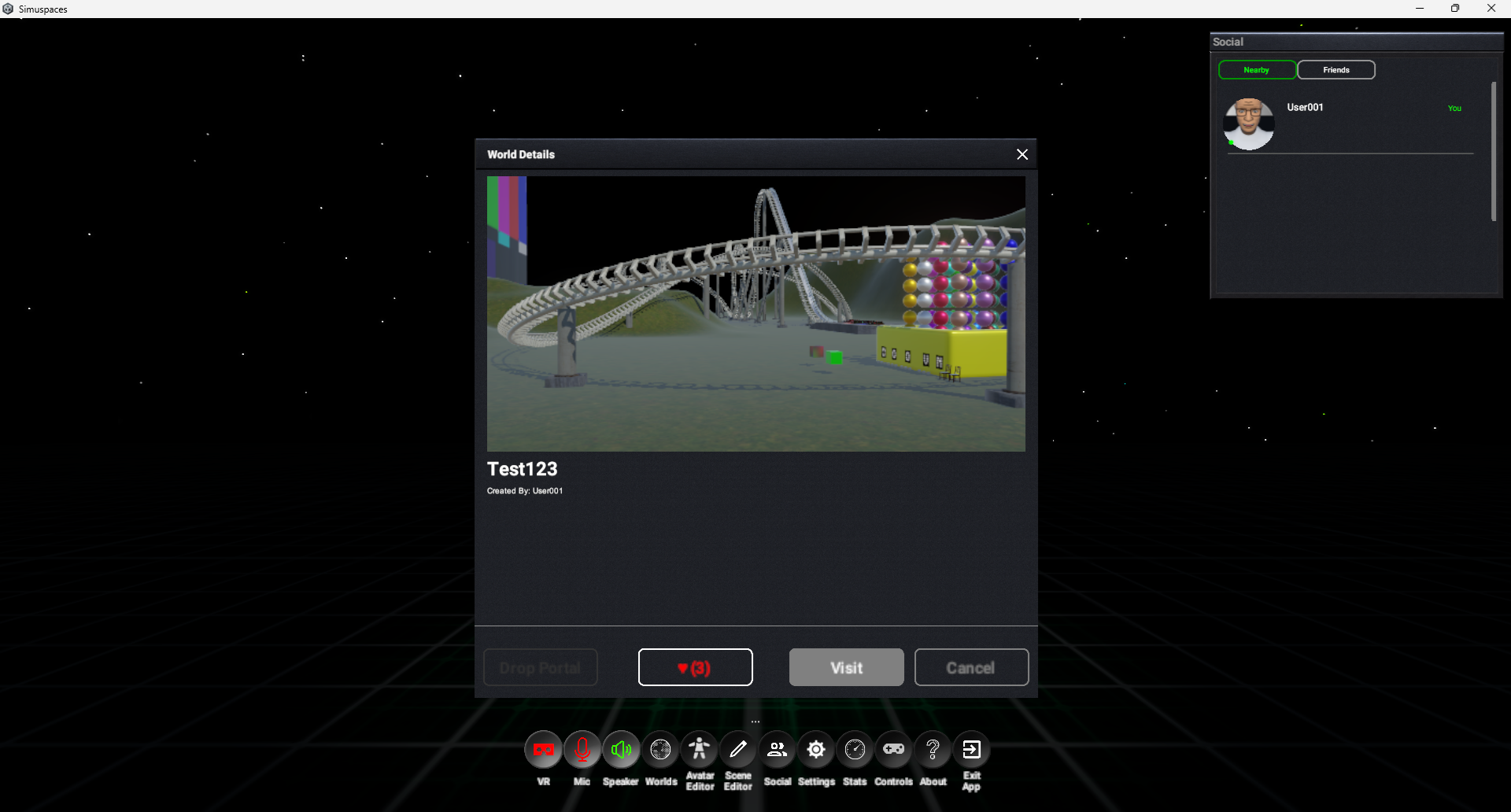
  3. Select a world card to view details.
  4. Check access notes, event status, and capacity if shown.
  5. Select Join or Enter World.
  6. Wait for loading to finish, then move around once your avatar appears.
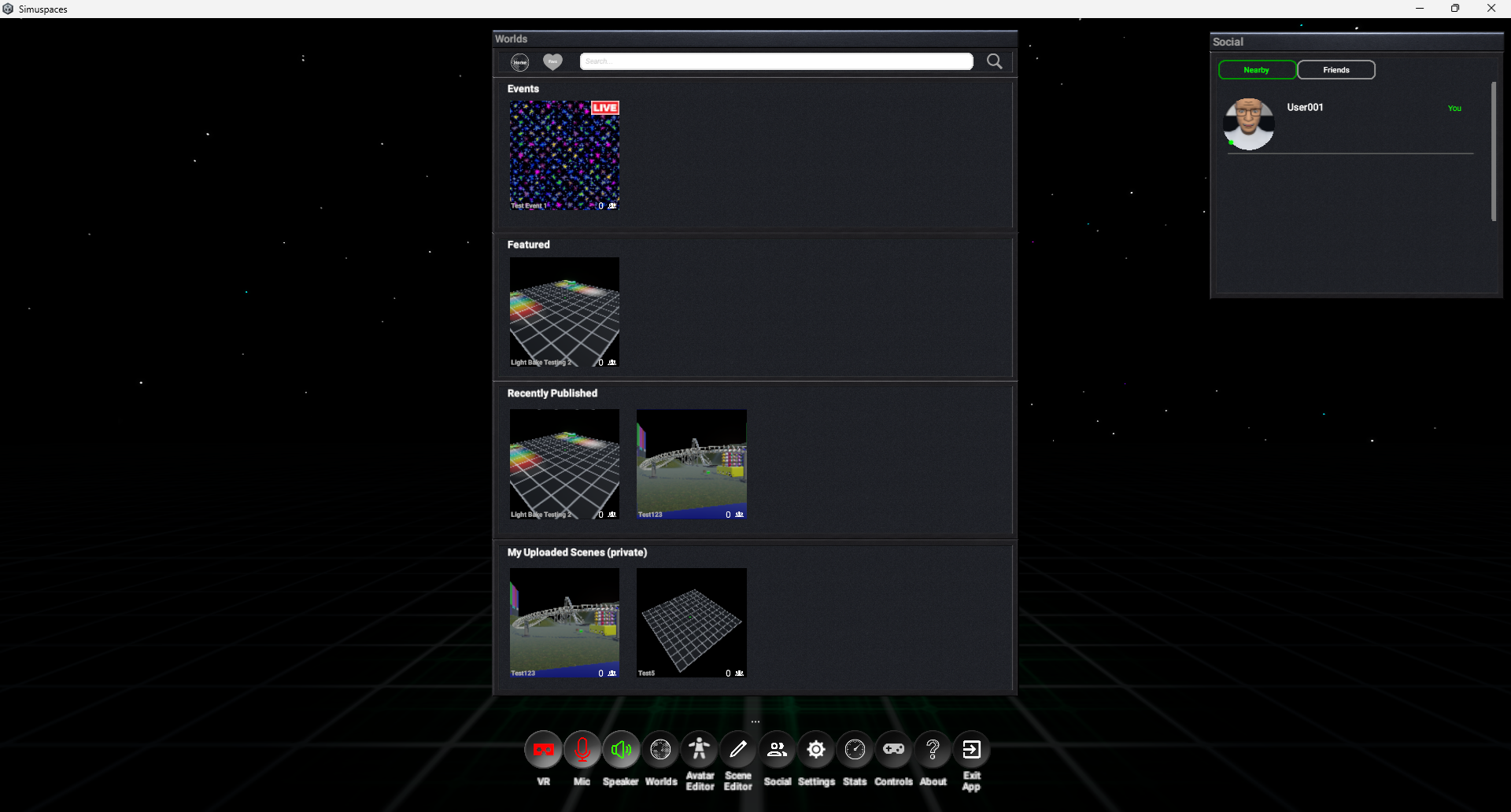
World browser screenshot placeholder
World detail join screenshot placeholder

Private Or Restricted Worlds

Some worlds may require an invitation, ticket, permission, or account status. If the join button is disabled, read the world details and check whether you need to sign in again, request access, or wait for the event start time.

When Joining Fails

Stuck on loading

Wait a moment, then return to the browser and try again. Large scenes can take longer the first time.

Access denied

Confirm you are signed in with the correct account and have permission for the world or event.

Performance issues

Open Settings and lower graphics quality, shadows, or view distance.