Avatar guide

Avatar Editor

Create outfits with owned items, store items, clothing, accessories, and uploaded avatar content.

Wiki / Avatar Editor

Open The Avatar Editor

  1. Sign in to the client.
  2. Open Avatar Editor from the dashboard, profile, or avatar menu.
  3. Wait for your current avatar or default avatar to load in the preview.
  4. Use the item panels to browse clothing, accessories, bodies, hair, and other categories.
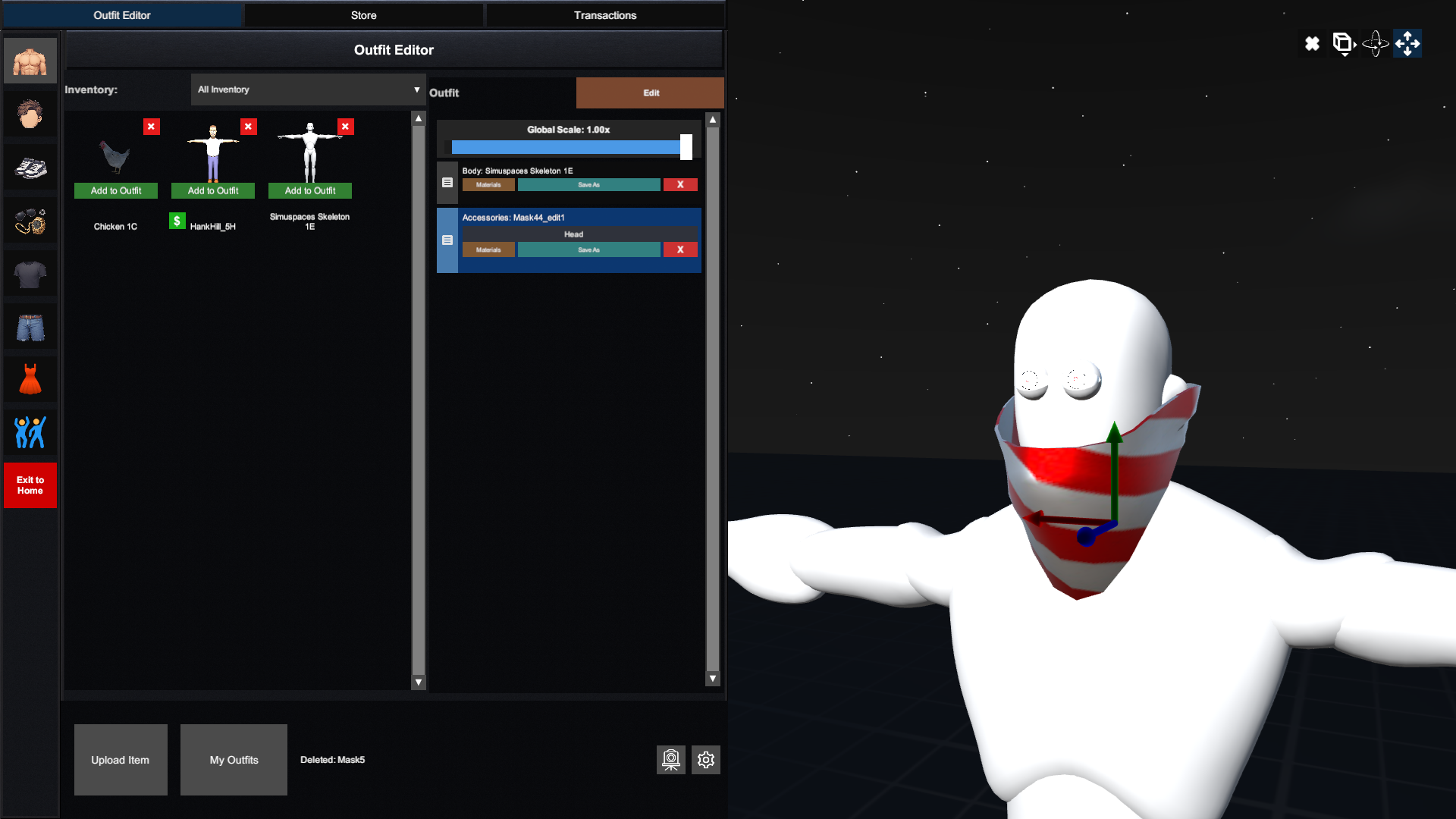
Avatar Editor overview screenshot placeholder

Upload Bounds And Skeleton Template

Custom avatars and wearable items need to be prepared against the upload requirements before they are accepted by Avatar Editor.

Skeleton

Rig avatars and clothing to Simuspaces Skeleton.fbx. Accessories can be unrigged, or they can use their own skeleton for Dynamic Bone motion.

AABB Box

Open the gear settings icon in Avatar Editor and enable the AABB box preview. Avatars, clothing, and accessories must fit inside that box before upload.

Full Guide

See the Uploads guide for item-type rules, skeleton notes, and the upload flow.

Create An Outfit With Store Items

  1. Open the Store or item browser from inside Avatar Editor.
  2. Select a category such as clothing, hair, shoes, or accessories.
  3. Preview an item on your avatar.
  4. If the item is not owned, follow the purchase or claim flow shown by the Store.
  5. Apply owned items to the outfit.
  6. Adjust position, rotation, color, material, or fit options if the item supports them.
  7. Save the outfit with a clear name.
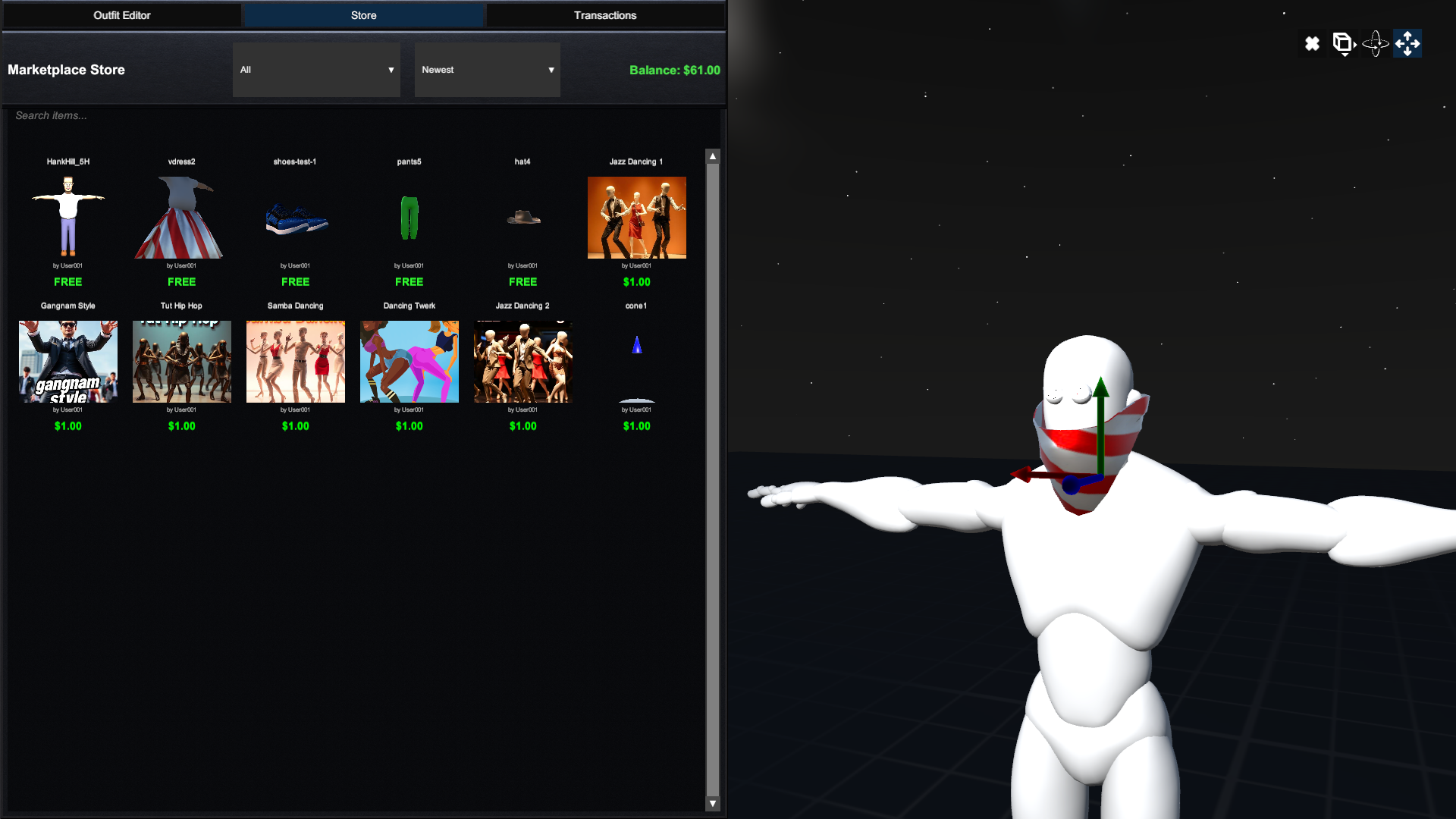
Store item preview in Avatar Editor screenshot placeholder

Save And Use The Outfit

After saving, choose the outfit as your active look. Some worlds may refresh your avatar immediately; others may require rejoining the world to show the new outfit to everyone.

Preview

Shows how the outfit looks before saving.

Save Outfit

Stores the current combination of avatar items as a reusable look.

Set Active

Makes the saved outfit your current avatar appearance.