Install guide

Install The Game Client

The Simuspaces Windows client installs through a standard setup wizard. Download the installer, run it, and launch the client when setup finishes.

Wiki / Install Client

Before You Install

If you already have Simuspaces installed, you do not need to redownload it. It will automatically update upon a successful login if you have any pending updates needed.

When running the installer for the first time, if Windows shows a security prompt, confirm that the installer is the one you downloaded from the official Simuspaces download page and allow it to open.
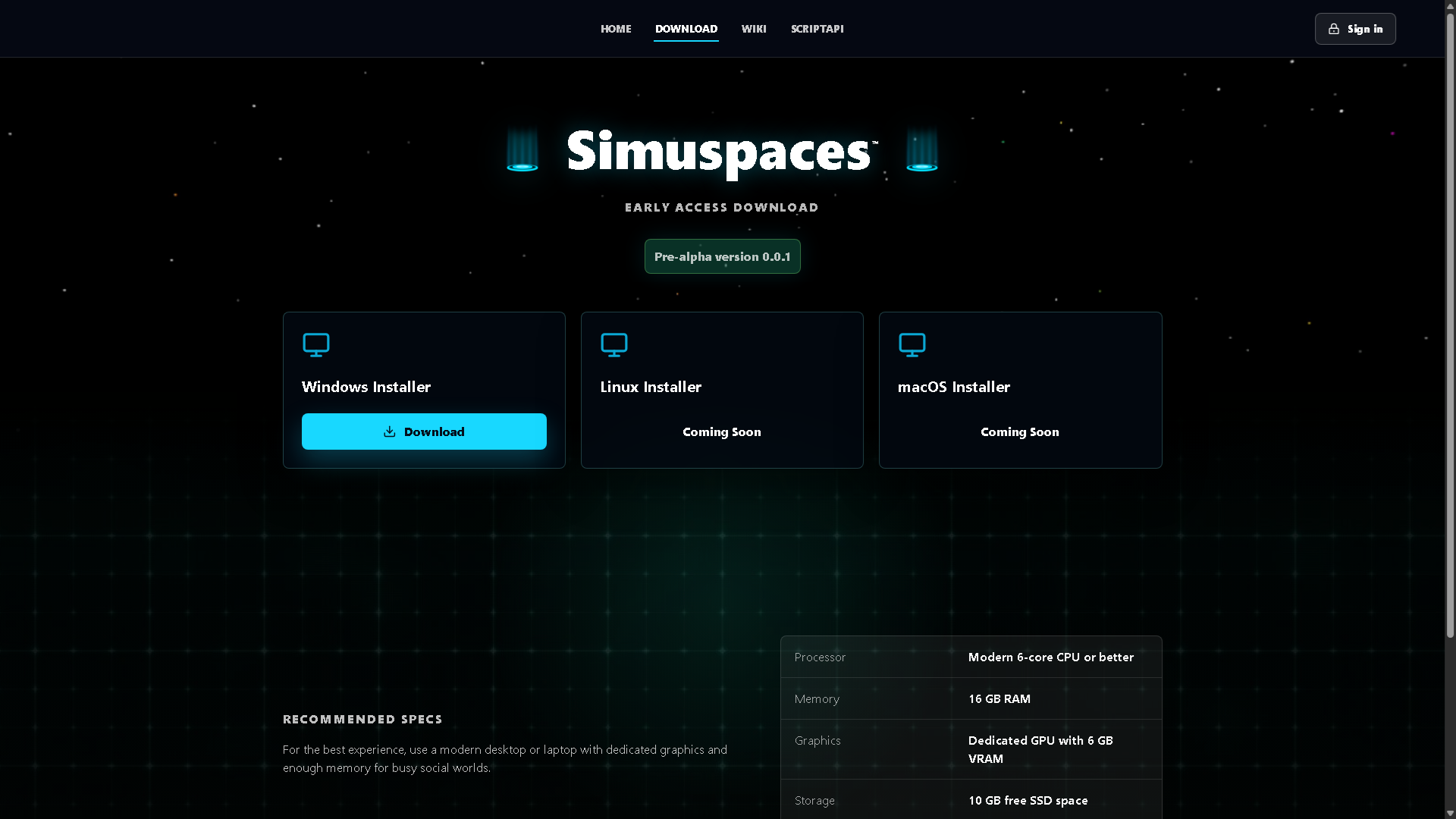
Download page screenshot placeholder

Install Steps

  1. Download the latest Simuspaces installer from the Download page.
  2. Open the downloaded .exe installer.
  3. Follow the setup wizard prompts.
  4. Choose the install location if you want to change the default.
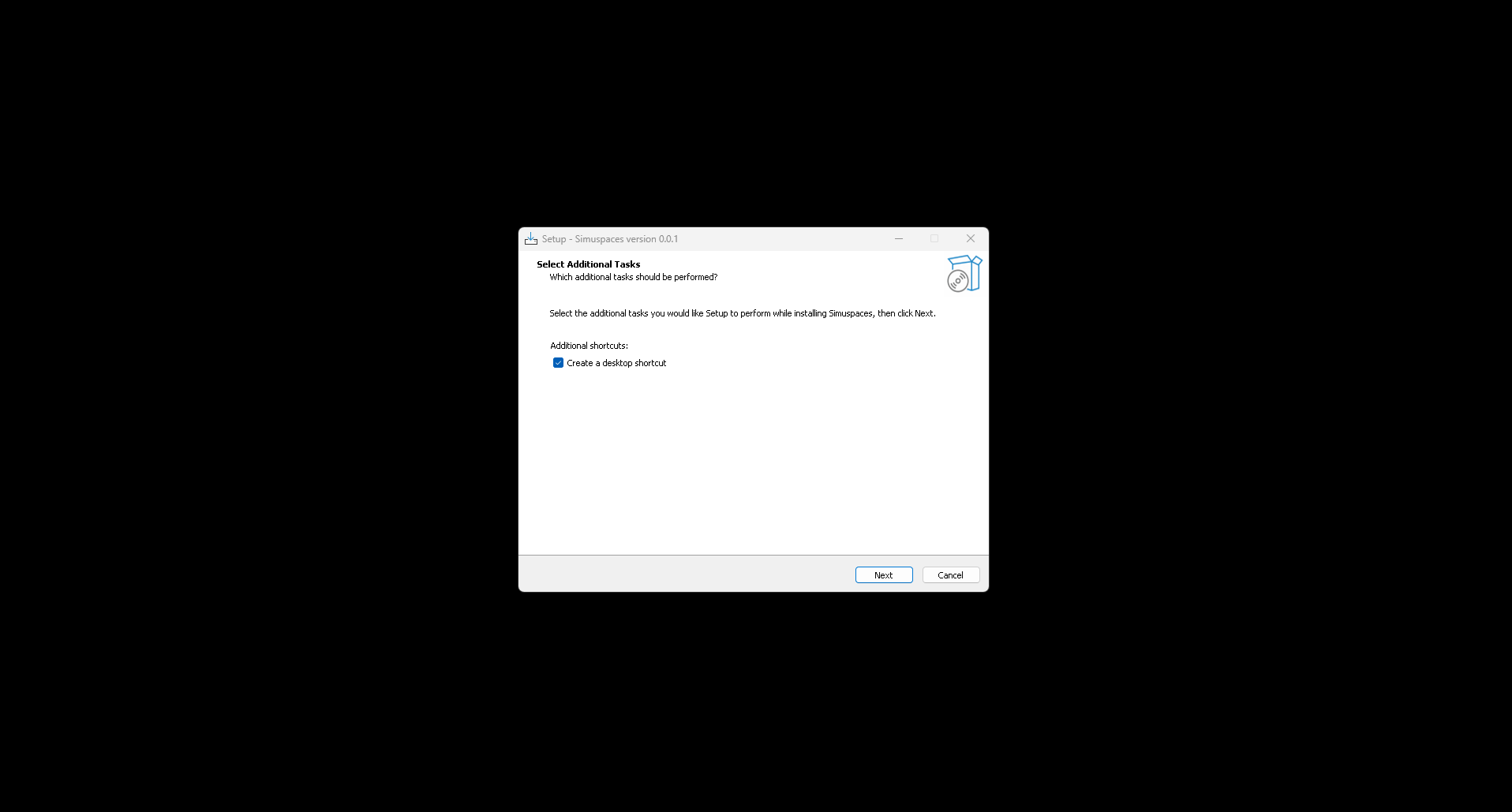
  5. Choose whether to create Start Menu or desktop shortcuts.
  6. Select Install, wait for setup to finish, then launch Simuspaces.
Installer welcome screenshot placeholder
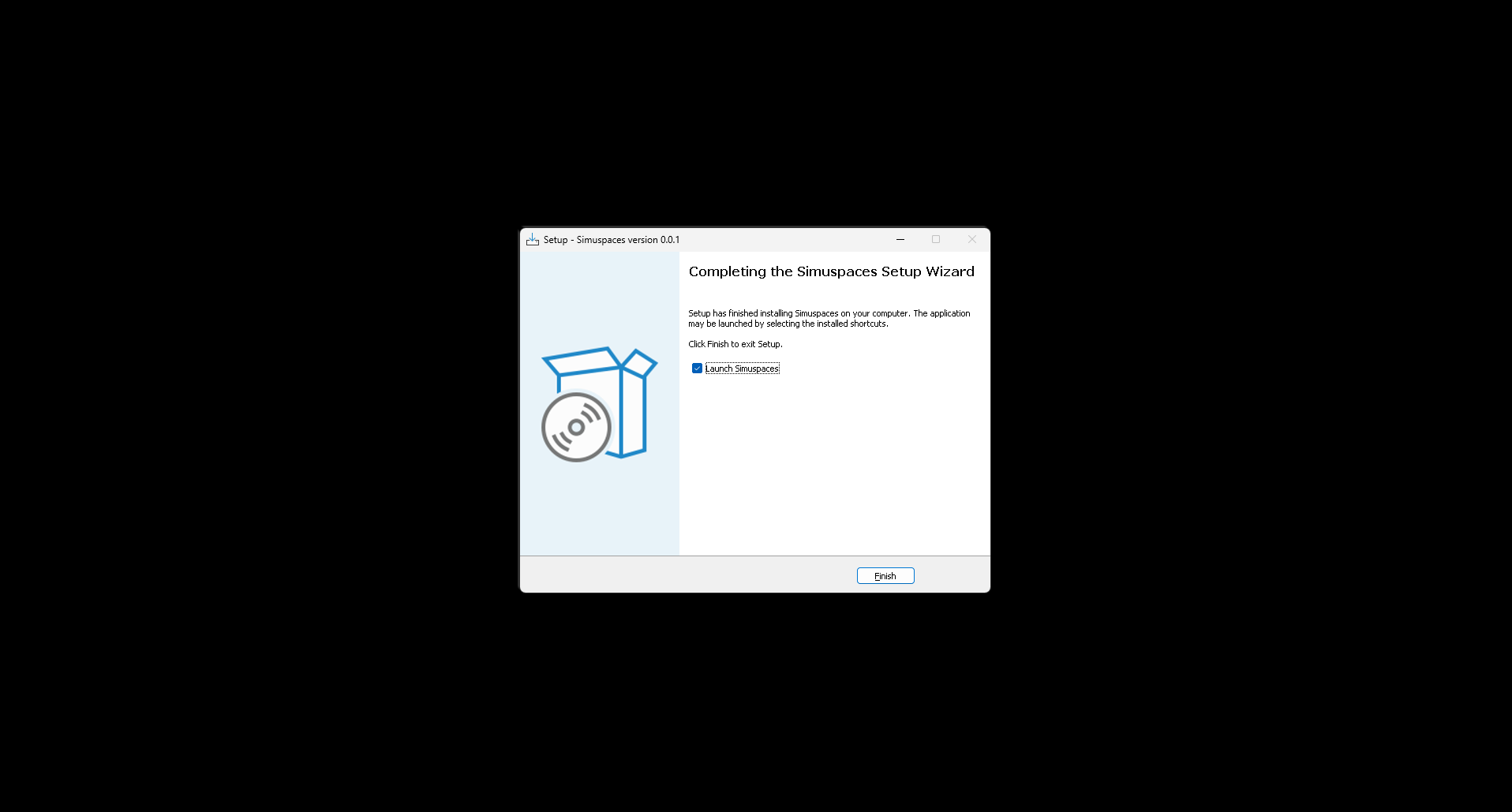
Installer finished screenshot placeholder

Updating

When a newer installer is available, run it the same way. The installer should update the existing client in place. If the client is open, close it first so files can be replaced cleanly.